2 minutes
Install Cloudflare Zero Trust With Docker
Introduction: Cloudflare Zero Trust Tunnel is a secure solution that enables you to connect your private infrastructure to Cloudflare’s network without exposing it to the public internet. This manual will guide you through the installation process of Cloudflare Zero Trust Tunnel using Docker with host network mode and a Cloudflare Token for authentication.
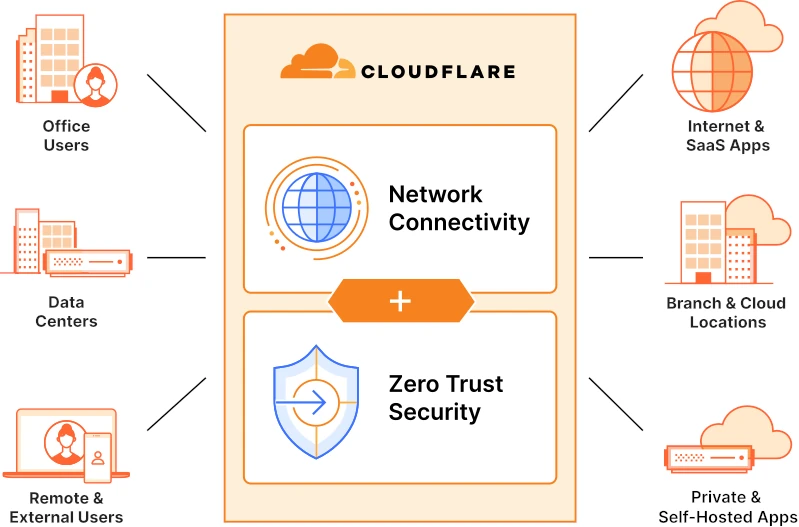
Step 1: Log in to Cloudflare and Create a Tunnel Configuration
- Open a web browser and navigate to the Cloudflare website.
- Log in to your Cloudflare account.
- Go to the “Zero Trust” section in the Cloudflare dashboard.
- Click on “Tunnels” and then “Create Tunnel Configuration.”
- Provide a name for your configuration, select the data centers you want to use, and configure other settings as per your requirements.
- Save the configuration.
Step 2: Start the Tunnel Container with Docker
- Open a terminal or command prompt.
- Run the following command to start the Cloudflare Zero Trust Tunnel container using host network mode and the Cloudflare Token:
sudo docker run -d --name cloudflare --restart unless-stopped --network host cloudflare/cloudflared:latest tunnel --no-autoupdate run --token <cloudflare_token>
Replace <cloudflare_token> with the Cloudflare Token you generated in Step 1. Example:
sudo docker run -d --name cloudflare --restart unless-stopped --network host cloudflare/cloudflared:latest tunnel --no-autoupdate run --token eyJhIjoiM2U1Yzg1NWExOWE3MGE3N2YwMzY1ZWNjZDVlMzlhOTgiLCJ0IjoiYTY4OTdmMWQtYjFhOC00MjExLWIxZTQtZmJmOTA3YmRmMGZmIiwicyI6Ik5qUXdNalZrWTJJdFlUZzROQzAwTkRGa0xUZzFPVFV0T0RZek9Ea3lPV1F6WldaaSJ9
Step 3: Validate and Test the Tunnel
- Check the logs of the Cloudflare Zero Trust Tunnel container to ensure that it started successfully:
sudo docker logs cloudflare
You should see logs indicating a successful connection to Cloudflare.
- Open a web browser and visit the URL provided by Cloudflare during the tunnel creation.
- If the tunnel is functioning correctly, you will see a success message indicating that your tunnel is working.
- Test accessing your private resources through the tunnel to ensure connectivity and proper functionality.
Step 4: Run Cloudflared as a Daemon Service (optional) If you want to run Cloudflare Zero Trust Tunnel as a daemon service, you can use Docker’s daemon mode and enable automatic restart. Example:
sudo docker run -d --name cloudflare --restart unless-stopped --network host cloudflare/cloudflared:latest tunnel --no-autoupdate run --token eyJhIjoiM2U1Yzg1NWExOWE3MGE3N2YwMzY1ZWNjZDVlMzlh